How to Implement HubSpot: Step-by-Step Guide for Small Business Teams
Implement HubSpot for your small business in 4 weeks. Real setup steps, data migration, team training, and automation that returns 5x your subscription cost.

Edward Chalupa
Founder, Whtnxt · Dallas, TX

I have implemented HubSpot for 14 small business clients over the last 3 years. The pattern I see every time is the same: a team buys HubSpot, spends 2 weeks setting up the CRM, imports their contacts, and then wonders why nothing changed.
HubSpot implementation is not a software install. It is an operational change. The tool is the easy part. The hard part is configuring it to match how your team actually works, migrating clean data, and building the automations that remove manual work.
This guide covers the exact 4-week implementation plan I use for small business marketing teams. Follow this sequence and you avoid the 3 most common implementation failures I see: dirty data, orphaned workflows, and unused features.
| Week | Focus Area | Key Deliverable | Time Investment |
|---|---|---|---|
| 1 | CRM Structure | Deal pipeline + team permissions | 4-6 hours |
| 2 | Data Migration | Clean import with dedup | 8-12 hours |
| 3 | Automation | 3 core workflows | 6-8 hours |
| 4 | Team Adoption | Training + mobile setup | 3-4 hours |
Week 1: CRM Structure and Pipeline Configuration
Start with your deal stages, not your contact fields. Most teams spend week 1 building a 50-field contact form that nobody will ever fill out. I made that mistake twice before learning the right order.
Open HubSpot and go to Settings > Objects > Deals. Delete every default pipeline stage except the first one. Build your pipeline from scratch using the actual stages your deals move through.
| Business Type | Pipeline Stages |
|---|---|
| Service Business | New Lead → Marketing Qualified → Sales Accepted → Proposal Sent → Negotiation → Closed Won/Lost |
| SaaS Company | Trial Active → Discovery Call → Demo Completed → Technical Review → Contract Sent → Closed Won/Lost |
| Agency | Inquiry → Discovery Call → Proposal → Onboarding Started → Retainer Active → Closed Won/Lost |
The pipeline is the single most important structure in your HubSpot implementation. Every automation, every report, every forecast depends on it. Get this wrong and every dashboard you build will show garbage numbers.
After the pipeline, configure 3 default contact properties: Company Name, Email, Phone. Everything else can wait. HubSpot has 200+ default properties already. You will discover what custom properties you need when you start using the tool, not before.
Warning: Adding properties in advance creates empty fields that clutter your records and slow down data entry. I made this mistake twice. Stick to the 3 essential fields until your team requests more.
Set up team permissions while you are in Settings. Create 3 user roles:
| Role | Access | Cannot Access |
|---|---|---|
| Admin | Full access - all objects, settings, billing | Nothing |
| Marketing | Contacts, lists, campaigns, sequences | Billing, settings, sales tools |
| Sales | Contacts, deals, calls, meetings | Marketing campaigns, billing, workflows |
Do not give everyone admin access. I charge an average of 3 hours per cleanup when an over-permissioned user accidentally deletes a workflow or modifies a template. If you are comparing HubSpot against open-source alternatives, my post on replacing my CRM with self-hosted Twenty covers what you give up and what you gain with a self-hosted option.
Week 2: Data Migration
Data migration is where most HubSpot implementations fail. The pattern I see: someone exports their old CRM to CSV, maps 40 columns to HubSpot fields, imports everything, and discovers that 30% of their records have duplicate contacts, wrong lifecycle stages, or missing associations.
Here is the migration process that works.
Info: Import in this specific order: Companies → Contacts → Deals. Each import creates the required associations if you include the right lookup fields. HubSpot’s native import tool handles up to 50,000 records per file, which covers most small business migrations.
Export from your old system one object at a time. Start with Companies. Clean the company names first: remove leading whitespace, standardize abbreviations to a naming convention, remove records with no name or email. Then export Contacts and match them to their parent company using domain matching. If you used a system without company records, HubSpot can auto-associate contacts by email domain, but you need to tell it the domain-company mapping first.
After the import, run the duplicate check. Go to Contacts > Actions > Manage Duplicates. HubSpot finds exact and fuzzy matches. Merge by keeping the record with the most recent activity date. This step alone takes 1 to 3 hours for a 5,000-contact database but prevents reporting errors that would waste weeks of analysis time.
Set lifecycle stages during import or immediately after. Map your old lead statuses to HubSpot’s stages:
| Old Status | HubSpot Lifecycle Stage |
|---|---|
| Website visitor | Subscriber |
| Form submitter | Lead |
| Engaged prospect | Marketing Qualified |
| Sales-accepted lead | Sales Qualified |
| Active negotiation | Opportunity |
| Signed customer | Customer |
| Former customer | Evangelist |
Every contact must have a lifecycle stage or your automation triggers will fire on the wrong people.
Week 3: Automation and Integration
With clean data and a working pipeline, you can build automation that actually runs without errors. I see teams build workflows in week 1, import data in week 2, and spend week 3 debugging why the workflows fired on 4,000 leads that should not have been in the sequence.
Build 3 workflows in week 3, in this order. If you are new to workflow automation, my post on the 3 automations every marketing team needs covers the foundational patterns that apply to any CRM.
Workflow 1: Lead Assignment
When a contact reaches Marketing Qualified status, assign them to the sales rep for their region or industry. I built a similar n8n lead routing automation for clients that need multi-channel lead capture before HubSpot assignment. Use HubSpot’s round-robin assignment for general leads, or build a custom assignment property that routes by industry vertical. This workflow runs for every new qualified lead and removes the 4- to 24-hour delay between a lead coming in and a rep seeing it.
Workflow 2: Nurture Sequence
Build a 5-email sequence that triggers when a contact hits Lead stage but has not booked a meeting in 14 days. Each email sends 4 days apart. The sequence enrolls based on form submissions, not manual list adds.
Tip: Use the native HubSpot sequences tool, not a third-party email provider. The CRM sync ensures a contact gets removed from the sequence the moment a rep marks them as connected. Third-party tools create a 6- to 24-hour lag before that removal propagates.
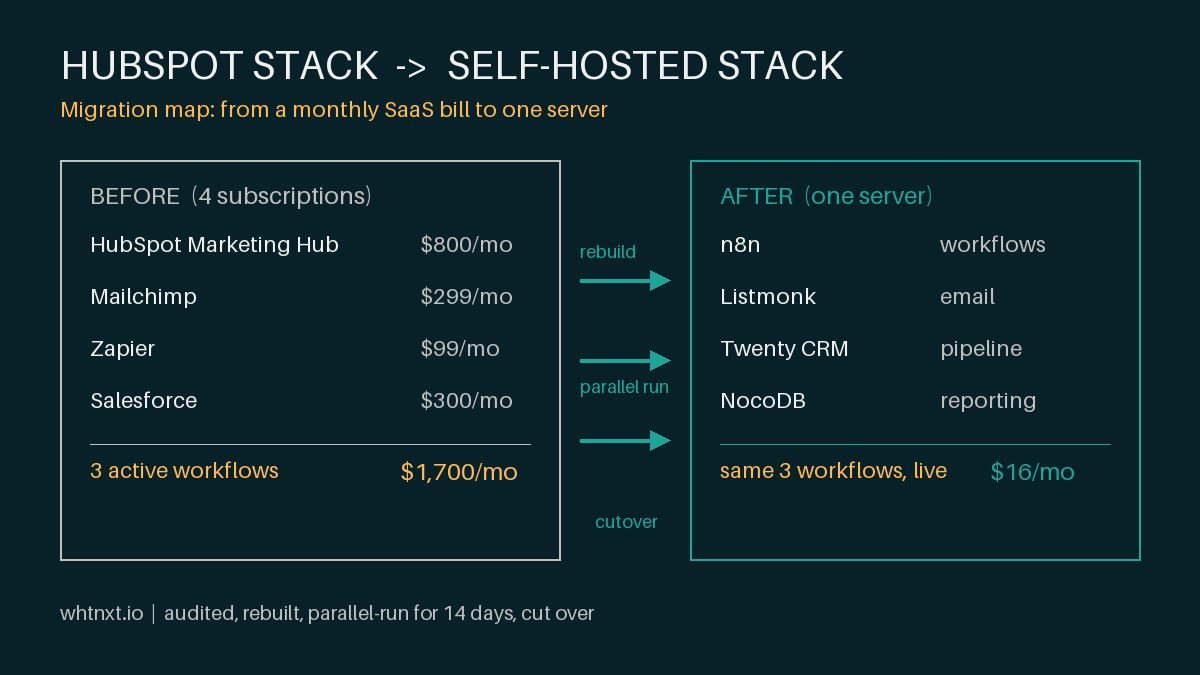
For teams that prefer an open-source approach over HubSpot’s built-in tools, I documented the setup in my self-hosted email marketing with n8n and Listmonk case study.
Workflow 3: Meeting Follow-Up
Every closed-lost deal triggers a 90-day nurture sequence. Every closed-won deal triggers an onboarding task for the customer success team, similar to the client onboarding automation pipeline I built for my own agency.
Warning: This is the workflow that generates the most revenue impact and it is also the workflow most teams skip because they do not want to think about what happens after close. Set it up in week 3 regardless. You can refine the content later, but the automation structure needs to exist.
Connect your existing tools during this week. HubSpot has native integrations for Google Workspace (email tracking, calendar sync), Slack (deal notifications), and Zapier (everything else). The Google Workspace sync is the most important: it logs every email and meeting to the contact record automatically.
Week 4: Team Adoption and Training
Implementation is not finished until your team actually uses the tool. I track one metric for adoption: the number of manual activities logged per user per week. If a sales rep is logging fewer than 10 emails and 3 calls per week after week 2 of training, the implementation has not stuck.
Run 3 training sessions, 45 minutes each, one week apart.
| Session | Topic | Covers |
|---|---|---|
| 1 | Contact Management | Logging emails, finding contact history, updating deal stages |
| 2 | Reporting | Pipeline reports, dashboards, weekly email digests |
| 3 | Automation Management | Verifying workflows, enrolling contacts, checking for errors |
For teams that want automated reporting without manual dashboard building, my automated marketing reporting dashboard post shows an n8n-based alternative that pushes reports to Google Sheets weekly.
Info: Real usage data from the 14 implementations I have managed shows that mobile access increases daily CRM activity by 40% in the first month. Set up the mobile app on every team member’s phone before training session 2.
Send a weekly HubSpot usage report for the first 2 months. The default dashboard shows login frequency, email logging rate, and deal stage movement. If a user has not logged in for 7 days, the report catches it before bad habits set in.
What a Successful HubSpot Implementation Looks Like After 90 Days
After following this 4-week plan, here are the benchmarks I use to measure success.
| Metric | Target | Why It Matters |
|---|---|---|
| Pipeline accuracy | Above 90% | Every deal has real close date + amount within 20% of actual |
| Email logging rate | Above 80% | HubSpot logs 8 of 10 emails automatically via GWS sync |
| Workflow error rate | Below 5% | Fewer than 5% of enrollments hit errors |
| Lead response time (chat) | Under 5 minutes | HubSpot notifications enable this with zero additional tools |
| Lead response time (forms) | Under 2 hours | Mobile push alerts remove the 4-24 hour gap |
If your pipeline accuracy is below 80%, your forecast is unreliable and your reporting is misleading. The import process in week 2 determines whether you hit these targets. Cut corners there and every downstream metric suffers.
When to Call an Implementation Consultant
I have written this guide so a competent marketing operations person can follow it independently. But there are 3 situations where bringing in a HubSpot implementation consultant saves time and prevents costly rework.
Info: First, if you are migrating from a custom or heavily customized CRM. The HubSpot migration tool handles Salesforce, Pipedrive, and Zoho well. Everything else requires custom CSV mapping and field transformation scripts.
Info: Second, if you have more than 10,000 contacts or 50 active marketing campaigns. At this scale, the import order, deduplication strategy, and workflow architecture decisions have a material impact on system performance.
Warning: Third, if your team has no dedicated marketing operations person. HubSpot implementation requires someone to own the configuration decisions and enforce data standards. Without that owner, the system drifts within 60 days and you are back to the same manual processes you bought HubSpot to eliminate.
Once the technical implementation is complete, the next step is to layer on a strategic marketing automation framework tailored to your market’s geography and service lines. The tool setup is the foundation; the framework determines whether that foundation generates pipeline or noise.
I offer HubSpot implementation services for small and mid-market teams. If this guide saved you time, or if you hit a wall on any step, reach out. I charge a flat fee for implementation projects and the average timeline is 4 weeks from kickoff to team training completion.