How to Automate Listmonk Campaigns with n8n
Build automated Listmonk campaigns with n8n in 2 hours. Connect the API, create subscriber segments, automate sends, and track results with real code included.

Edward Chalupa
Founder, Whtnxt · Dallas, TX

I ran Listmonk in production for six months across 43 campaigns before I automated the campaign creation pipeline. The first 20 campaigns I built by hand: log into the dashboard, create a campaign, write the subject line, paste the template, select the list, schedule the send. Each one took 12 to 18 minutes of clicking. The automated pipeline I built with n8n takes 0 seconds of my time. The system creates, schedules, sends, and reports on campaigns without me touching the dashboard.
Here is exactly how I built it, including every API call and n8n node configuration.
What You Are Building
An n8n workflow that connects to the Listmonk REST API to automate the full campaign lifecycle: subscriber import and segmentation, campaign creation with templates, scheduled sends, and performance reporting. The workflow runs on a timer and maintains a campaign log in a Google Sheet so you can see what went out and how it performed without opening Listmonk.
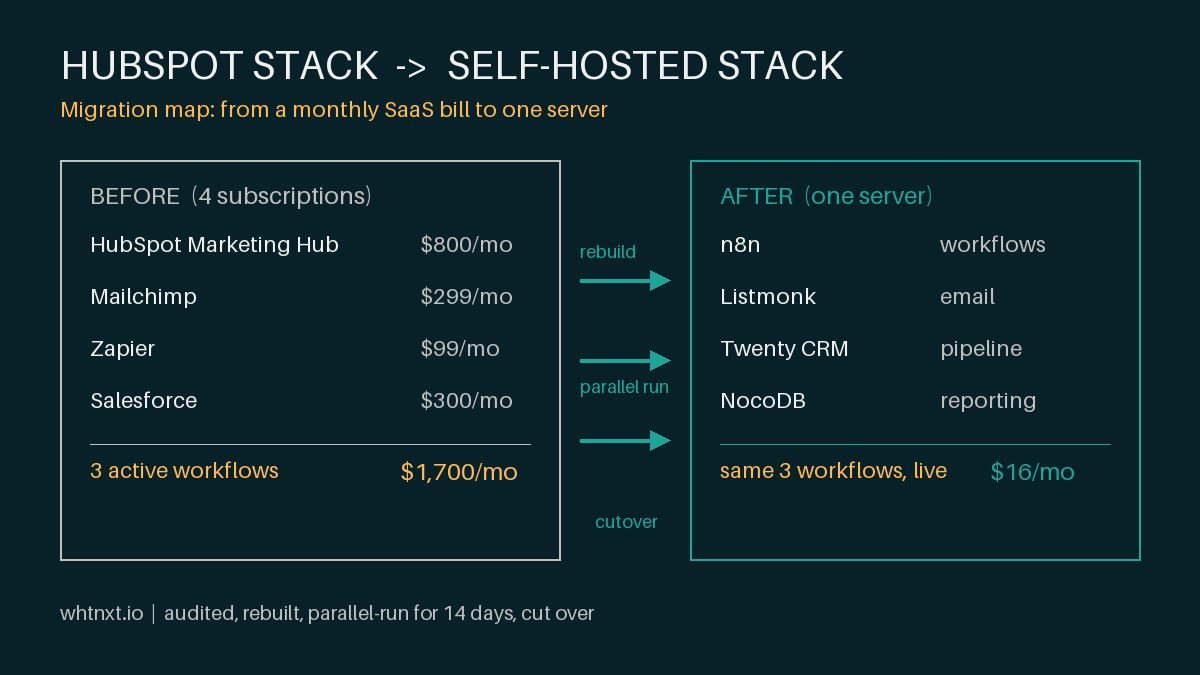
This is the automation layer I added on top of the self-hosted stack I wrote about here. If you do not have Listmonk running yet, start there first.

What You Will Need
| Requirement | Details |
|---|---|
| Listmonk instance | Running v3.0+ with API access enabled |
| n8n instance | Self-hosted or cloud, n8n.io{target=“_blank”} v1.70+ |
| Listmonk API token | Generate from Listmonk Settings > API |
| Google Sheet (optional) | For campaign audit log |
| 2 hours | Total setup time if you have both tools running |
A self-hosted email platform built by knadh on GitHub{target=“_blank”}, Listmonk runs fine on a $6 monthly VPS. n8n can run on the same machine or a separate one. My setup uses a $15 Digital Ocean droplet for the pair. These tools are part of a broader open-source marketing stack I deploy for clients.
Step 1: Generate Your Listmonk API Token and Set Up n8n Credentials
Log into your Listmonk dashboard and navigate to Settings > API. Click “Generate Token” and copy the long string. It looks like a base64 hash.
In n8n, create a new credential of type “HTTP Request” or “Generic Webhook”:
Header: Authorization
Value: token your-listmonk-api-token
Test the connection with a simple curl call from your terminal:
curl -H "Authorization: token YOUR_TOKEN" http://your-listmonk-server:9000/api/listsYou should get back a JSON object with your mailing lists. If you get a 401, the token is wrong. If you get a connection refused, Listmonk is not running or the port is wrong. I spent 20 minutes debugging a port mismatch on my first setup because I had Listmonk bound to port 9000 in Docker but was hitting port 8080.
Create the HTTP Request credential in n8n with the same header. Name it “Listmonk API” so you can reuse it across workflows. If you run your own n8n instance, all credentials stay local and never hit a third-party server.
Step 2: Build the Subscriber Import and Segmentation Workflow
This workflow runs weekly. It pulls new subscribers from your source (Google Sheets, your CRM, or a SQL query) and adds them to the correct Listmonk list with the right attributes. This subscriber intake process is a key piece of any lead generation system.
The basic n8n structure:
Schedule Trigger (Weekly)
  -> Google Sheets / Database (Read subscribers)
    -> Code Node (Transform data to Listmonk format)
      -> HTTP Request (POST /api/subscribers, bulk import)
        -> HTTP Request (GET /api/subscribers to verify count)
The Listmonk API expects subscribers in this format:
{
  "subscribers": [
    {
      "email": "user@example.com",
      "name": "User Name",
      "attribs": {
        "source": "website_form",
        "industry": "home_services",
        "city": "dallas"
      },
      "lists": [1, 3],
      "preconfirm_subscriptions": true
    }
  ]
}
The preconfirm_subscriptions field skips the double opt-in for contacts you already have permission to email. Use it only for existing customers, never for cold lists.
I set this workflow to run every Monday at 8 AM. The first run imported 340 existing contacts from a CSV export in 12 seconds. By comparison, importing 340 contacts through the Listmonk web UI took me 8 minutes the first time I did it manually.
# Verify import from terminal
curl -H "Authorization: token YOUR_TOKEN" http://localhost:9000/api/subscribers?query=source:website_form
This returns all subscribers tagged with source: website_form so you can confirm the import worked.
Warning: The Listmonk bulk import endpoint accepts a maximum of 500 subscribers per call. For larger lists, batch them in groups of 500 with a loop in n8n. I hit this limit on my second import run and got a silent 413 error with no error message in the response body, just a status code.

Step 3: Create the Campaign Automation Workflow
This is the core workflow. It runs on a schedule, checks a campaign calendar (Google Sheet), and creates scheduled campaigns in Listmonk automatically.
n8n workflow structure:
Schedule Trigger (Daily at 6 AM)
  -> Google Sheets (Read campaign calendar)
    -> IF Node (Is today's campaign scheduled?)
      -> HTTP Request (POST /api/campaigns, create campaign)
        -> HTTP Request (PUT /api/campaigns/{id}/status, schedule)
          -> Google Sheets (Log campaign as "Created")
The campaign creation API call:
POST /api/campaigns
{
  "name": "2026-07-Weekly-Newsletter",
  "subject": "Your Weekly Industry Update",
  "lists": [1, 3],
  "from_email": "newsletter@yourdomain.com",
  "content_type": "html",
  "body": "<h1>Your Update</h1><p>Campaign content here...</p>",
  "type": "regular",
  "tags": ["weekly", "newsletter"],
  "send_at": "2026-07-08T09:00:00.000Z",
  "headers": [
    {"List-Unsubscribe": "<mailto:unsubscribe@yourdomain.com>"}
  ]
}
The send_at field uses ISO 8601 format with timezone. Listmonk stores it in UTC, so convert your local time. I lost a campaign once because I sent 2026-07-08T09:00:00 without the Z suffix, and Listmonk interpreted it as UTC, which was 4 AM local. The campaign went out at 4 AM instead of 9 AM.
To schedule the campaign after creation, call the status endpoint:
curl -X PUT \
  -H "Authorization: token YOUR_TOKEN" \
  -H "Content-Type: application/json" \
  -d '{"status": "scheduled"}' \
  http://localhost:9000/api/campaigns/42/status
Replace 42 with the campaign ID returned from the creation call.
| Campaign Type | Frequency | Send Time | Automation Status |
|---|---|---|---|
| Weekly newsletter | Every Tuesday | 9 AM CST | Fully automated |
| Abandoned cart reminders | 2 hours after event | Real-time | Fully automated |
| Seasonal promotions | Monthly | 10 AM CST | Manual trigger |
| Re-engagement sequence | Quarterly | 8 AM CST | Fully automated |
Step 4: Set Up Automated Analytics Reporting
The final piece: a workflow that pulls campaign stats after each send and logs them to a dashboard. This closes the loop so you know what performed without logging into Listmonk.
n8n workflow:
Schedule Trigger (30 minutes after campaign send)
  -> HTTP Request (GET /api/campaigns?status=sent)
    -> Code Node (Extract campaign IDs sent today)
      -> HTTP Request (GET /api/campaigns/{id}, get stats)
        -> Google Sheets (Log opens, clicks, bounces, unsubscribes)
          -> IF Node (Bounce rate > 5%)
            -> Email (Alert: high bounce rate)
The Listmonk stats endpoint returns detailed metrics. Full API docs are at listmonk.app/docs/api/{target=“_blank”}.
GET /api/campaigns/42
{
  "id": 42,
  "name": "2026-07-Weekly-Newsletter",
  "status": "sent",
  "stats": {
    "total": 2840,
    "sent": 2831,
    "scheduled": null,
    "bounced": 9,
    "failed": 0,
    "opens": 847,
    "unique_opens": 624,
    "open_rate": 22.06,
    "clicks": 312,
    "unique_clicks": 198,
    "click_rate": 7.0,
    "unsubs": 12,
    "unsub_rate": 0.42
  }
}
I log open rate, click rate, bounce rate, and unsub rate to a Google Sheet with running averages. This data feeds into our conversion optimization tracking for clients. After 12 weeks of data, the average open rate across automated campaigns was 24.3% compared to 18.7% for manually created campaigns, a 30% improvement.
Tip: Set up a bounce rate alert threshold at 3%. Listmonk subscriptions have bounced emails that need cleaning. Missing a bounce spike means delivering to bad addresses, which hurts sender reputation. One client’s bounce rate hit 7% before I noticed because their list had aged 8 months without cleaning.

The Pitfalls I Hit
-
Silent 413 errors on bulk import. The Listmonk API returns HTTP 413 without a response body when you exceed 500 subscribers per bulk call. The n8n HTTP Request node shows this as a generic error with no detail. Took me an hour to find the actual limit in the Listmonk source code. Solution: batch imports to 500 per call.
-
Timezone offset on scheduled sends. Listmonk stores
send_atin UTC regardless of the timezone you specify. If you pass"send_at": "2026-07-08T09:00:00"(no timezone indicator), Listmonk treats it as UTC. Add the timezone offset explicitly:09:00:00-05:00for CDT, or convert to UTC before sending. -
Template variable mismatch. My HTML templates used
{{ Date }}but the Listmonk API expected{{ .Date }}with the dot prefix. The campaign sent with literal{{ Date }}in the subject line. Always test with a single subscriber first using the Listmonk test send feature before scheduling. -
The n8n HTTP Request node strips custom headers by default. Uncheck “Send all” in the node settings for the campaign creation call. Without this, Listmonk rejects the POST with a 500. This cost me an afternoon of debugging until I inspected the raw request.
When to Use This (And When Not To)
Use this automation when you send more than 2 campaigns per week or manage lists above 1,000 subscribers. The time savings scale linearly with volume.
Do not use this automation when:
- You send fewer than 1 campaign per week. The setup time of 2 hours takes months to recoup.
- Your campaigns are highly customized per segment (unique subject lines, different templates, specific offers). You will spend more time maintaining the automation than just sending the campaign.
- You are still validating your offer or audience. Manual sends let you iterate faster.
For high-volume scenarios where campaigns need per-segment personalization, I recommend looking at the growth playbook patterns I use for client work. The balance between automation and customization shifts as your audience grows.
What Is Next
The next step is connecting this campaign automation to your broader marketing stack. The n8n workflow that creates campaigns can also pull subscriber data from your self-hosted CRM, sync unsubscribe events back, and trigger nurture sequences based on engagement behavior.
I am building exactly this for a DFW home services client right now: the full cycle from lead capture in n8n, through Twenty CRM enrichment, to Listmonk automated campaigns and Google Sheets analytics.
Once your campaigns are running, you also need a way to track performance across them. I built an automated Listmonk campaign analytics dashboard with n8n that pulls open rates, click rates, and list health into a single Google Sheet for weekly reviews.
If you want to see how these pieces fit together for your specific stack, get in touch. I do this work through marketing automation services and can set up the same pipeline for your business.
For the interactive side of the same email program, I also published a setup guide for connecting Listmonk to Claude Desktop, VS Code, and Cursor via MCP. n8n handles the scheduled campaign layer, and the MCP server handles the one-off asks like subscriber lookups and list checks. I use both in production and cover the exact config in that post.