How to Connect Google Analytics 4 to BigQuery Without a Connector
Link GA4 to BigQuery with the native export in Admin: the data region trap, the service account check, and a per-query cost cap. Live in about 45 minutes.

Edward Chalupa
Founder, Whtnxt · Dallas, TX

Connect Google Analytics 4 to BigQuery with the native link in GA4 Admin. No connector subscription, no API quota juggling, and a nightly export that fits inside Google’s documented free tier. The build takes about 45 minutes. This guide covers the three settings people get wrong: the data region, the export service account, and the per-query cost cap.
I run this link on every client property I manage that outgrows a spreadsheet. The pull lands raw events in a dataset I own, and the same tables feed the joins behind my Outbrain DSP warehouse reporting. Three routes move GA4 data into BigQuery. Only the native link exports raw events, keeps your credentials home, and costs nothing at small-site volume.
What does the link actually give you?
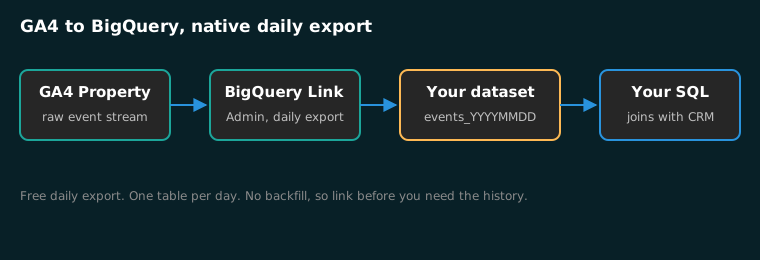
BigQuery Linking sits under Admin and Product links in every GA4 property. Once enabled, Google copies your event stream into your own Cloud project once a day. You get raw events, not aggregated report rows, and that difference decides everything downstream.
| Route | What moves | What it costs | What you give up |
|---|---|---|---|
| Native BigQuery link | Raw events, daily | Nothing at small-site volume | One day of lag; no history before you link |
| GA4 Data API into Sheets with n8n | Report rows you request | API tokens and a workflow to maintain | Aggregates only, capped rows per response |
| BigQuery Data Transfer Service | Reporting API data on a schedule | The same API path, scheduled by Google | Not raw events |
The third row confuses people because both Google and the connector vendors use the phrase “GA4 to BigQuery.” The Data Transfer Service connector schedules transfers built on the Reporting Data API. It moves report data you could have pulled anyway. The native link moves the event log itself.
The decision rule I use with clients is simple. Stay in Sheets while the weekly report is the job, because the GA4-to-Sheets pull is the lighter build. Move to the warehouse when you need joins: web sessions against CRM deal values, or ad spend from another channel sitting next to the sessions it bought. When that channel is Google Ads and there is no native link to flip, the n8n Google Ads-to-BigQuery build is the pipe. SQL needs tables, and the native link is the only free way to get raw GA4 events into tables. I will say the unpopular version out loud: a connector subscription for GA4 is money spent renting a button Google gives away in Admin, and at single-property volume I will not sign off on one.
Two ceilings decide whether you are a warehouse property at all. The daily export tops out at a documented 1 million events per day on a standard property. And if you ever fall back to the API, a standard property gets 200,000 Core tokens per day, so high-traffic sites need the export, not the pull. Most Texas SMB sites I audit sit two orders of magnitude under both numbers.
What do you need before you start?
Everything on this list is free or already exists if you run any Google stack. The whole prerequisite pass takes about 15 minutes.
| Item | Details | Time |
|---|---|---|
| GA4 property | Editor role on the property (Admin access, not just Viewer) | Done already |
| Google Cloud account | Billing account attached, even if spend stays at zero | 5 minutes if new |
| Cloud project | One purpose-built project, not your production workload | 2 minutes |
| BigQuery enabled | First visit to console.cloud.google.com/bigquery enables it | 1 minute |
| Data region decision | Where your rows will live, permanently | 5 minutes of reading |
Two warnings before the steps, because both create rework you cannot undo cleanly.
The export creates no history. Google starts copying events the day you link and will never backfill the time before it. The setup tutorial puts it plainly: there is no backfill for historical data you already collected. Link today even if your first query is next quarter, because every week you wait is a week of event data the warehouse will never contain. GA4’s own UI retention window cannot help you here either; the export is the only way to keep event-level history past it.
Pick the data region once. The link asks for a data location and then honors it forever. If you choose the wrong region, the fix is deleting the link and the dataset and starting over, and your query costs change too, because cross-region data movement bills against bytes. For a Texas-based business with no compliance constraint, us (multi-region United States) is the right answer and it matches where you will run queries. A client in a regulated vertical should confirm its own residency requirement before you submit the link.
Step 1: How do you create the project and dataset?
Go to console.cloud.google.com and create a project named for the job, something like acme-marketing-analytics. Do not reuse a project that runs production workloads. Billing alarms and dataset permissions stay legible when the analytics project holds only analytics.
Open BigQuery on that project and create one dataset, say analytics_ga4. Set the dataset location to the region you chose above, because the GA4 link will only offer locations that match an existing dataset you point it at, and moving a dataset later means copying every table.
Do not add tables. Google creates one table per day, named events_YYYYMMDD, and a handful of reference tables on the first export run. Anything you create by hand in that dataset just invites a schema collision.
Step 2: How do you configure the link in GA4 Admin?
Open GA4, click Admin, and find BigQuery Linking under Product links. Click Link, then Choose a BigQuery project, and select the project from step 1. If it is not in the list, refresh the page; the picker lags a project you created minutes ago.
The wizard makes three decisions worth pausing on.
- Data location. Select the region that matches your dataset. Remember: this is permanent for this link.
- Data streams. Keep every stream selected. Splitting web from app later is an edit; missing a stream’s early history is not recoverable.
- Export frequency. Daily. Streaming exists but requires a billing-enabled account and is genuinely unnecessary for marketing reporting. My pipelines run daily and nobody has ever asked for same-hour warehouse data.
The wizard also lets you exclude events. Leave it empty at first. The filter exists to keep a runaway custom event from eating the daily export ceiling, not as a cost-saving habit, and excluding an event you later discover you needed costs you every day it was off. Submit the link, then wait. The first export lands within a maximum of 24 hours, so plan the build around a next-day check.
Step 3: How do you verify the export service account?
This is the check most guides skip and the one that explains most “my dataset is empty” threads. Linking GA4 to BigQuery provisions a Google-owned system service account named firebase-measurement (on the system.gserviceaccount.com domain) as the writer into your project. The setup tutorial documents the flow, including the part that bites: the account must hold the BigQuery User role, and if you granted it something broader by hand first, you have to unlink and relink before the roles reset.
Open IAM in the Cloud project and confirm that member is present with the BigQuery User role. If it is missing, the link never had write permission and your first export is silently not coming. If the role looks wrong, relink rather than editing the role by hand, because Google reconciles this member on link events, not on your edits.
The same page is where you grant humans. Add your own account, and any analyst, with BigQuery User or BigQuery Data Viewer. Do not hand out the project Editor role to read a marketing dataset. The least-privilege rule I apply to every n8n credential applies here too: scopes that read like paranoia are the reason reporting pipelines stay boring.
Step 4: How do you cap the bill before anyone queries?
BigQuery’s on-demand free tier covers 1 TB of queries and 10 GB of storage each month, and overage bills at $6.25 per TB scanned. A single property’s event table for a small site is tens of megabytes a day. My nightly reporting queries land at the 10 MB minimum billed per table and the bill stays at zero.
Zero is the likely outcome, and “likely” is not what you want standing between an analyst and a SELECT * across a year of events. One setting removes the tail risk: a per-query cap on bytes billed. Set it in the BigQuery legacy or project settings at something like 10 GB per query. A query that would scan more fails with an error instead of a surprise invoice. The custom quotas documentation covers the finer-grained version with per-user quotas when a team grows.
This is the same posture I take on every warehouse build on this site, including the Outbrain-to-BigQuery pipeline: the free tier makes the normal case cost nothing, and the cap makes the abnormal case cost one failed query instead of a phone call.
Step 5: How do you verify the data and run the first join?
The next morning, open BigQuery and check four things in order.
- The dataset contains a table named
events_YYYYMMDDfor yesterday. - The table preview shows columns like
event_name,event_timestamp,user_pseudo_id. - This query returns a row count greater than zero:
SELECT COUNT(*) AS events
FROM `analytics_ga4.events_20261103`- Your GA4 UI sessions for the same day are the same order of magnitude as the event count. They will not match exactly, events and sessions are different units, but a 10x gap means you are looking at the wrong stream or the wrong day.
Then run the join that justified the warehouse. Here is the shape I use first on any client property: yesterday’s key events by landing page, which answers a question the GA4 UI answers only one date range at a time.
SELECT
  (SELECT value.string_value FROM UNNEST(event_params)
   WHERE key = 'page_location') AS page,
  COUNTIF(event_name = 'generate_lead') AS leads,
  COUNT(DISTINCT user_pseudo_id) AS users
FROM `analytics_ga4.events_20261103`
GROUP BY page
ORDER BY leads DESC
LIMIT 20
Swap generate_lead for the key event you actually track. When this query runs, the pipe is real: raw events flowing from GA4 into a dataset you own, answering questions in SQL. From here the tables join against anything else you load, and the dashboard automation guide covers pushing the results back to the people who read them.
What breaks in the first week?
Four failures account for every broken GA4 warehouse I have been asked to rescue.
| Symptom | Cause | Fix |
|---|---|---|
No events_ table after 24 hours | Export service account missing from IAM | Relink so Google re-adds the firebase-measurement system account |
| Access denied on every query | User has project access but not dataset access | Grant BigQuery User on the project or Data Viewer on the dataset |
| Table exists but query bills huge | Full table scan across all daily tables | Query one dated table, or use a date wildcard with a partition filter |
| Data stopped mid-month | Link edited or billing account lapsed | Check the link status in GA4 Admin and the billing account state |
Why do my BigQuery counts disagree with GA4 reports? The export writes raw events; reports apply filtering, including bot filtering and attribution logic. Count events here, trust reports for the number you show a boss, and use the warehouse for the questions reports cannot answer.
Can I use Looker Studio on the warehouse instead of Sheets? Yes, and it is the upgrade path for the Sheets reporting clients run today: the Adtraction-to-Looker bridge shows the pattern of pointing a dashboard at modeled tables instead of raw rows.
Does this work for multiple client properties? Yes, with one project per client. The export writes into the project you select at link time, and separating projects keeps each client’s data, billing cap, and IAM clean. This is exactly how I keep a roster separated in the reporting dashboards I deploy.
Next steps
The link is free, the export runs without a workflow to babysit, and the history starts accumulating from the day you submit. Three decisions carry the build: pick the region once, verify the export service account, and cap bytes billed before anyone else opens the console. Run the step 5 join the morning after, and you will know within five minutes whether the pipe is live.
Some teams want the joins built, not just the pipe opened. If the endgame is ad spend, calls, form fills, and CRM deals sitting in one queryable place, that is the marketing automation work I do for North Texas clients, usually on top of the paid search and lead generation programs they already run. The audit conversation costs nothing, and if a warehouse is genuinely overkill for your volume, I will tell you to stay in Sheets.